How support works.
What you get once we look after your IT: three ways to ask for help, a portal where the practice manager sees every ticket, every device and any backup that failed, and a service report to download. The screenshots come from a demo clinic in our real portal, so no practice's data is shown.
Already a client? Sign in to the portal.
Three ways to get help
Use them in this order. All three are checked every day, including when someone on our team is on leave.
Ask Fae, our AI assistant.
Fae is on every computer we look after. She watches how the computer is running, and does not open Best Practice or MedicalDirector or read patient information. Click the yellow icon in the system tray, next to the clock, and tell her what's wrong in plain words: “Best Practice won't open”, or “the printer isn't printing”. She fixes what she can straight away. When she can't, she logs the device, the problem and what she has already tried, so whoever picks it up starts from there. She can only see the computer she's on, so a problem with another device, a new staff member or your account goes in a ticket.
Raise a ticket in the portal.
The portal's Get support button asks what kind of request it is: something is broken, someone is starting or leaving, or you need something new or changed. Each asks only what we need to start, suggests a guide that may fix it, and lets you add a photo of the error. You say how urgent it is, and an email confirms we have it.
Call the hotline, (03) 4445 9111.
For something urgent, or when the practice can't work. It rings all of our engineers at once. If you can, raise it with Fae or a ticket first, so we have the details when we answer. Outside your practice's business hours, urgent help is a paid callout: $198 plus $165 an hour.
Choosing a ticket priority
| Priority | When to choose it |
|---|---|
| Critical | The whole clinic cannot work |
| High | One person cannot work and nobody can cover |
| Medium | Annoying, but there is a workaround |
| Low | Whenever convenient |
Choose the priority that best describes the problem so our team understands its impact. If the whole clinic can't work, call the hotline.
Please use these rather than anyone's personal mobile, which may not be checked.

What the practice sees in the portal
The portal is at support.in10se.com.au, and you sign in with your work email. Everyone you give a login to sees the practice's tickets, devices, visits and guides. The people you nominate as billing contacts also see the account.
Every ticket
Everyone with a login sees every ticket the practice has raised, newest first, with where it's up to and who is working on it. You can reply with photos, watch a ticket someone else raised to get its email updates, and reopen one if the problem comes back.

Every device
The portal lists each device we look after, grouped by room, with its make, model, serial number and how long its warranty has left. Each is marked healthy, ageing or due for replacement, judged on its age and warranty. From a device you can report a problem or ask for a replacement quote, and the ticket arrives with the device already on it.
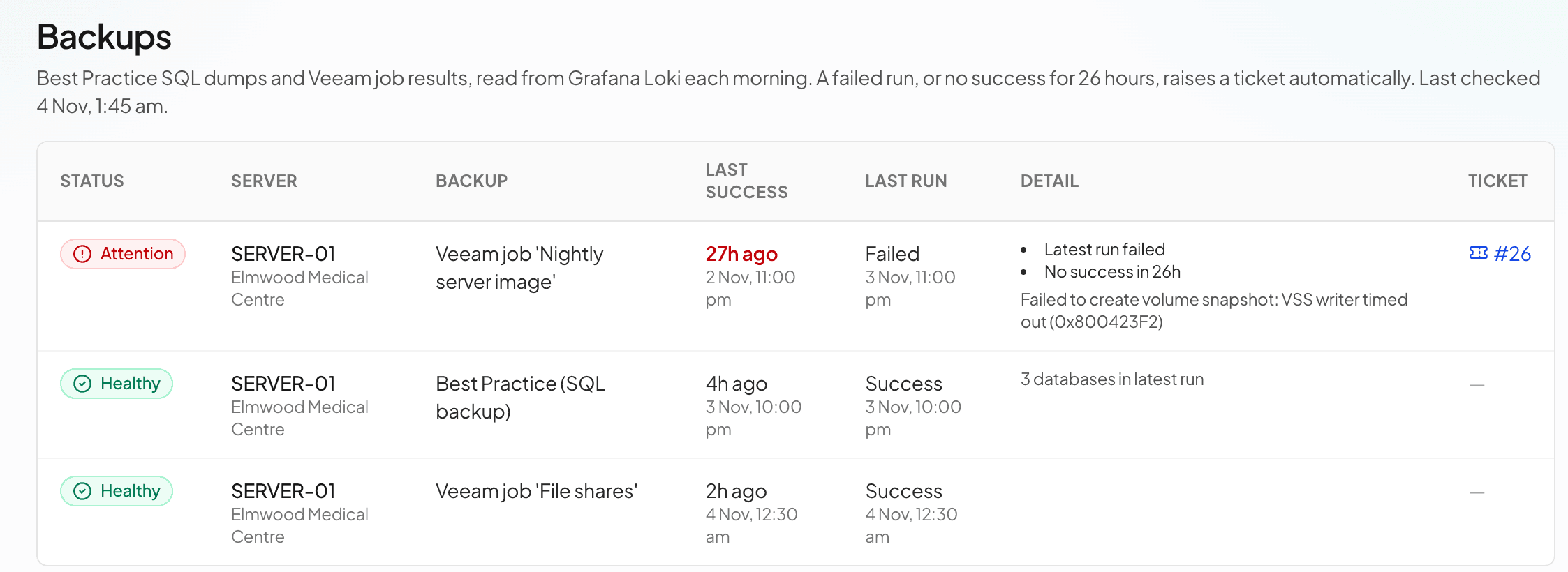
Any backup that failed
Every morning, before you open, the portal checks the overnight backups on the servers we monitor, such as the Best Practice database backup and the image of the server itself. If one failed or didn't run, the portal home page says so, with the date of the last good backup, and a ticket is raised for us that shows in your ticket list. When the next backup succeeds, the ticket records it and closes.
A failed backup needs attention even when the clinic’s computers appear to be working normally.

The security measures, with dates
The portal lists ten measures we keep for the practice: backups configured, restore tested, multi-factor authentication enforced, access reviewed, leavers removed, updates installed, security software running on every computer, disks encrypted, email security in place, and an incident response plan. Each one in place shows the date we last verified it. When that proof goes out of date, it shows “Being looked at” until we have checked it again.
They are the IT evidence a surveyor asks for under RACGP Criterion F8. More on accreditation.

Visits
The portal shows when we are next on site, who is coming, and the visits before.
The account
Billing contacts also see invoices as PDFs, statements, quotes and approvals, the services you have with us, contracts, and the service report below.
The service report
Billing contacts can download a service report for this month, the last 3, 6 or 12 months, or the year to date. It shows the tickets raised and resolved and how long they took, your team's feedback once at least three people have answered, visits, the services you have with us, how many devices are healthy, ageing or due for replacement, and what was invoiced.
For the accreditation surveyor, ask us for the practice's IT Compliance Summary: the ten measures above, with their status and dates.

Guides and tools
Guides written from our tickets
The portal's help centre has a folder called Fix it yourself: 15 short guides to the problems we see most, written from what fixed them at the practices we look after. They cover a computer stuck on a black screen after an update, phones that stop working, fake virus pop-ups, printers, password resets, and PRODA and Medicare certificate notices. Each says what to try first and when to raise a ticket instead. The portal suggests them while you fill in a ticket, so some problems are fixed before the ticket is sent.

Tools
The Patient File Fixer checks patient record files that Best Practice or MedicalDirector won't import, fixes the common faults and gives you the corrected file to download. It takes XML, PIT and HL7 files and runs in your browser, so the file never leaves the computer. There is a box on the tools page to ask for the next tool you would use.

Hardware and software
We choose hardware with each practice, for reliability and for cost. We're a Dell reseller, and we order every Dell machine to the same standard, warranty included. We aren't tied to Dell: when another make is more reliable or better value for the job, we recommend that and say why. Clients can order the models we currently recommend from a catalogue in the portal, and we set them up.
Software is chosen the same way. We have run remote access, email security, staff security training and backup software at the practices we support for years, and we recommend what has held up.
Questions
Who at the practice gets a portal login?
Anyone you nominate. Everyone with a login can raise and follow the practice's tickets, see its devices and visits, and read the guides. Billing contacts also see invoices, quotes, statements and the service report. To change who has which, raise a ticket.
Do we have to try Fae first?
No. Fae can help when the problem is on one computer. If the practice can't work, call the hotline.
When does Fae go on our computers?
During onboarding, which typically takes one or two days. We set up our support tools on the computers covered by your agreement and document the equipment we will look after.
What can Fae see?
Fae watches how each computer is running: the disk, the memory, updates, crashes and performance. She works at the level of Windows. She does not open Best Practice or MedicalDirector, and she does not read patient information. Her rules were written for medical clinics and for use in Australia.
Is the portal extra?
No. It comes with IT support: $550 a month for up to 8 devices, then $49.50 a month for each device after that. There is no charge per login.
What are the support hours?
Support runs during your practice's business hours, including early starts and late clinics. After hours the hotline keeps ringing our team until one of us picks up, which can take a while. Urgent work outside your hours is a callout: $198 plus $165 an hour, remote or on site. Monitoring runs around the clock and alerts our team to detected faults.
Is the data in these screenshots real?
No. They come from a demo clinic in our real portal. The clinic, the people, the devices and the figures are made up.
See the price for your practice.
Use the calculator to see the monthly cost for your computers and servers. If you would rather talk it through, book a 15-minute call.